PDF to Pages
 Napsal: úte říj 04, 2016 10:22 am
Podobných programů pro převod pdf do Pages je spousta, některé i free, ale tento mne skutečně zaujal svou jednoduchostí a přesností. Možná se bude někomu hodit. Osobně jsem za 5 USD spokojený 
https://itunes.apple.com/us/app/pdf-to- ... 6158?mt=12


VÍCE O APLIKACI

https://itunes.apple.com/us/app/pdf-to- ... 6158?mt=12
Productivity
12.10.2026 04:27
Velikost: 9 MB
Cena: US$ 4.99
Hodnoceni: 0
od 0 lidí
od 0 lidí
路 张
PDF to Pages: Convert & Edit 4.0.0
PDF to Pages for Mac | Turn PDFs Into Pages Documents You Can Actually Edit
A PDF lands in your inbox — a report to revise, a contract to update, a paper to rework — but the file is frozen: you can read it, you just can’t write in it. PDF to Pages changes that. Drop in a PDF and get a genuine Apple Pages document back, with headings, paragraphs, images, and charts exactly where they belong. Have a scanned, image-only PDF? Built-in OCR can read it and save the recognized content as a plain text file. And because the entire engine runs on your Mac, your documents are never uploaded anywhere.
One conversion, and the document is yours again. PDF to Pages is built around one job done exceptionally well: turning PDFs into living Pages documents. Choose a pixel-faithful layout where every text box and image stays editable, or a flowing body-text layout built for large-scale rewrites. Scanned and image-only PDFs are handled separately: on-device OCR reads them and exports the recognized content as plain text (.txt). When you need something simpler, you can also export images. Every step — preview, conversion, and recognition — runs locally on your Mac.
It Opens in Pages, Looking Just Like the Original
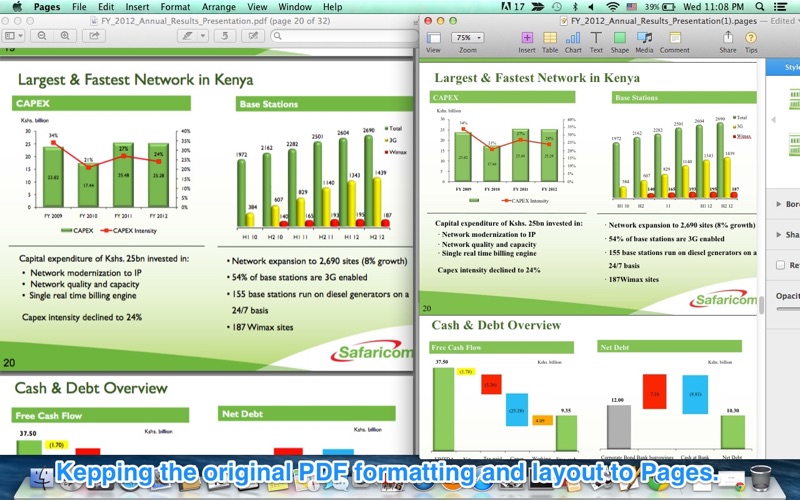
Place the PDF and the converted Pages document side by side and they’re hard to tell apart — same headings, same columns, same charts and pictures in the same places. But now everything is live: click a paragraph and type, select a chart and update it, move an image. This isn’t a page picture dressed up as a document; it’s a real .pages file built for editing.
Faithfully reproduces headings, multi-column layouts, tables, charts, and images
Open the result natively in Apple Pages, then write, restyle, or present it
Queue many PDFs and convert them all with the same setup in one pass
Two Ways to Build Your Pages Document
Text Boxes — Pixel-Faithful Layout
Default · precise, fully editable
Every block of text becomes an individual text box placed exactly where it was in the PDF, and images remain separate, selectable objects. Choose this when the look of the document matters — a report, a brochure, a form — and you want to edit the content while keeping the original design intact. Both text and images are fully editable.
Body Text — Flowing Text for Heavy Editing
Text is placed into a continuous Pages text body that reflows naturally as you add, delete, or restructure content, with the page images laid behind as a non-editable background. Choose this when the words are what matter — rewriting an article, extracting a chapter, feeding text into your own template — and you want to make large-scale changes without working around dozens of separate boxes.
Three Outputs in One App
Pages is the star, but the same queue covers the simpler jobs too. Export an editable Pages document, extract plain text for reuse elsewhere, or turn each page into an image. It’s a single dropdown to choose, and every file in the queue converts in one pass.
Pages (.pages): fully editable documents with layout, charts, and images intact
Text (.txt): plain text for reuse, archiving, or feeding your own templates
Images: JPEG, PNG, HEIC, TIFF, BMP, GIF, or WEBP — whole pages or embedded pictures
Pick exact pages, choose an output folder, and open the results with a click
Scanned PDF? OCR Turns It Into Real Text
A scan is only a photograph of a page, and most converters either skip it or hand you back the same lifeless image. PDF to Pages reads it instead: on-device OCR recognizes the text on scanned and image-only PDFs and saves it as a plain text (.txt) file you can search, quote, and keep editing. Scanned PDFs are converted to text — Pages output is available for regular PDFs that already contain a text layer.
Scanned, photographed, and image-only PDFs are recognized instead of skipped
Get the recognized content as an editable .txt file rather than a page picture
A PDF lands in your inbox — a report to revise, a contract to update, a paper to rework — but the file is frozen: you can read it, you just can’t write in it. PDF to Pages changes that. Drop in a PDF and get a genuine Apple Pages document back, with headings, paragraphs, images, and charts exactly where they belong. Have a scanned, image-only PDF? Built-in OCR can read it and save the recognized content as a plain text file. And because the entire engine runs on your Mac, your documents are never uploaded anywhere.
One conversion, and the document is yours again. PDF to Pages is built around one job done exceptionally well: turning PDFs into living Pages documents. Choose a pixel-faithful layout where every text box and image stays editable, or a flowing body-text layout built for large-scale rewrites. Scanned and image-only PDFs are handled separately: on-device OCR reads them and exports the recognized content as plain text (.txt). When you need something simpler, you can also export images. Every step — preview, conversion, and recognition — runs locally on your Mac.
It Opens in Pages, Looking Just Like the Original
Place the PDF and the converted Pages document side by side and they’re hard to tell apart — same headings, same columns, same charts and pictures in the same places. But now everything is live: click a paragraph and type, select a chart and update it, move an image. This isn’t a page picture dressed up as a document; it’s a real .pages file built for editing.
Faithfully reproduces headings, multi-column layouts, tables, charts, and images
Open the result natively in Apple Pages, then write, restyle, or present it
Queue many PDFs and convert them all with the same setup in one pass
Two Ways to Build Your Pages Document
Text Boxes — Pixel-Faithful Layout
Default · precise, fully editable
Every block of text becomes an individual text box placed exactly where it was in the PDF, and images remain separate, selectable objects. Choose this when the look of the document matters — a report, a brochure, a form — and you want to edit the content while keeping the original design intact. Both text and images are fully editable.
Body Text — Flowing Text for Heavy Editing
Text is placed into a continuous Pages text body that reflows naturally as you add, delete, or restructure content, with the page images laid behind as a non-editable background. Choose this when the words are what matter — rewriting an article, extracting a chapter, feeding text into your own template — and you want to make large-scale changes without working around dozens of separate boxes.
Three Outputs in One App
Pages is the star, but the same queue covers the simpler jobs too. Export an editable Pages document, extract plain text for reuse elsewhere, or turn each page into an image. It’s a single dropdown to choose, and every file in the queue converts in one pass.
Pages (.pages): fully editable documents with layout, charts, and images intact
Text (.txt): plain text for reuse, archiving, or feeding your own templates
Images: JPEG, PNG, HEIC, TIFF, BMP, GIF, or WEBP — whole pages or embedded pictures
Pick exact pages, choose an output folder, and open the results with a click
Scanned PDF? OCR Turns It Into Real Text
A scan is only a photograph of a page, and most converters either skip it or hand you back the same lifeless image. PDF to Pages reads it instead: on-device OCR recognizes the text on scanned and image-only PDFs and saves it as a plain text (.txt) file you can search, quote, and keep editing. Scanned PDFs are converted to text — Pages output is available for regular PDFs that already contain a text layer.
Scanned, photographed, and image-only PDFs are recognized instead of skipped
Get the recognized content as an editable .txt file rather than a page picture